
Free tools · Excel

Job application tracker for Excel

A real dashboard — eight live counters, your pipeline by stage, the four things due next and four charts — sitting on a 17-column sheet that fits a normal screen without scrolling sideways. No macros, no add-ins, nothing fetched from the internet, and no email required to download it.

  • No email required
  • No macros
  • Nothing sent to us
  • Free forever
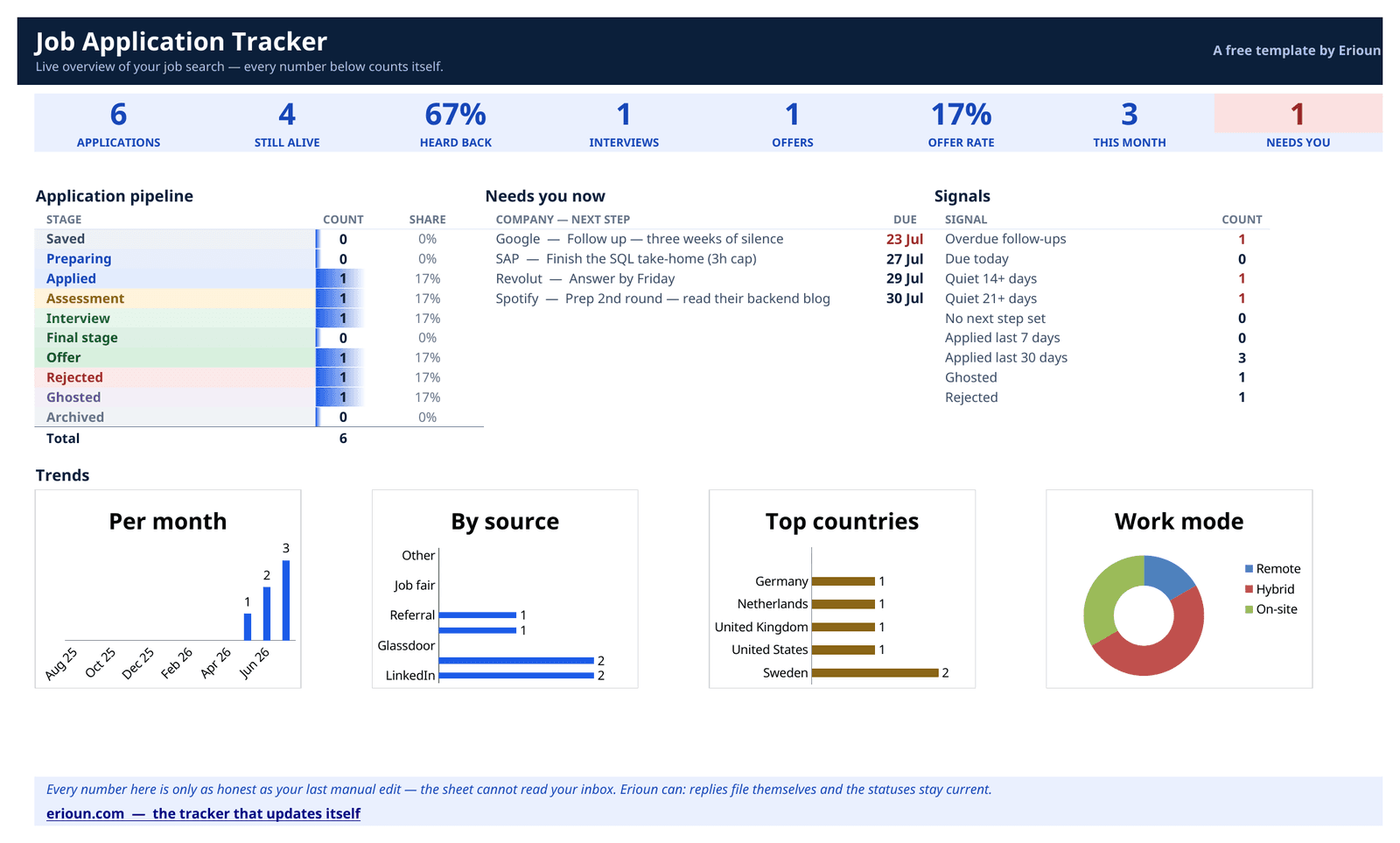
The Excel job application tracker's Dashboard: eight counters, the pipeline by stage, a Needs you now list and four charts.

See it before you download it

Both shots are the real Excel file, opened and rendered — not a mockup. The figures come from the six example rows it ships with.

The tracker's Dashboard: eight counters across the top, the pipeline broken down by stage, a Needs you now list, a Signals panel, and four charts.
The Dashboard. Nothing here is typed — every figure counts itself from the sheet next door.
The Applications sheet: one row per application, with a colour-coded status column, a red overdue follow-up date, and a Quiet column counting days of silence.
The Applications sheet. Status colour-codes itself, a late follow-up turns red, and Quiet counts the silence.

What makes this one different

Most free job application tracker templates are a blank grid with a status column. This one does four things on its own.

A dashboard that counts itself

Eight live counters — applications, still alive, heard back, interviews, offers, offer rate, this month, and how many things need you today. Under them: your pipeline across all ten stages, the next things due, and four charts covering months, sources, countries and work mode. You never type a number into it.

A column that spots ghosting

Quiet counts the days since anything last happened on each application — their reply if there was one, otherwise the day you applied. Amber at 14 days, red at 21, blank once it's closed. It is the one thing a spreadsheet can genuinely work out on your behalf, and most templates don't.

Follow-ups that refuse to be forgotten

Every row gets a next step and a due date. Overdue dates turn red, today's turn amber, and the Dashboard lists whatever is soonest. It also counts the live applications you've left without a next step — the ones that quietly fall out of a job search.

Nothing to install, nothing phoning home

No macros, no add-ons, no scripts, and — in the standard file — not a single request to the internet. Nothing about who you're applying to leaves your machine. No email address is required to download it either.

What's inside the Excel template

The columns that answer “what did I send, to whom, and what's next?” — and not one more. Two of them fill themselves in.

Every morning

The block that drives your day — and it fits on any screen without scrolling sideways.

Company
Who you applied to.
Position
The exact title from the posting.
Status
One of ten stages, Saved through Archived. Colour-codes itself.
Next step
The one thing to do next. Never leave it empty.
Due
When to do it. Goes amber today, red once it's late.
Quiet
Days since anything happened — fills itself in. Amber at 14, red at 21.

When something happens

The two dates that make the response rate and the silence-spotting work.

Applied
The date it actually went out.
Last reply
When you last heard from them. Drives the response rate.

Worth knowing later

Context you'll want when three offers land at once — or when none do.

Country
Pick from the list — feeds the top-countries chart.
City
Where the role sits.
Work mode
Remote, hybrid or on-site.
Salary
Posted or guessed — with its own currency column, so the average means something.
CV used
Which CV they have — the thing everyone forgets.
Email used
Which address you applied from, when you run more than one.
Source
Where you found the role.
Job link
The posting, before it disappears.
Notes
Anything future you will want to know.

Status stages: Saved · Preparing · Applied · Assessment · Interview · Final stage · Offer · Rejected · Ghosted · Archived — the same ten stages Erioun uses, so moving up later is a rename-free experience.

How to use it

  1. Download and open it

    Two versions below. Take the standard one unless you know you have Microsoft 365 — it does everything the other does, minus the country flags and company logos, and it opens cleanly in Excel 2016+, Excel for the web, LibreOffice Calc and Google Sheets. Apple Numbers is the exception, and the FAQ says why.

  2. Add a row the day you apply

    Company, position, the date, and which CV went out — while you still remember. Six example rows show the idea; overwrite them. Country, status, source, work mode and CV are all dropdowns.

  3. Always fill Next step and Due

    "Follow up", "send the take-home", and a date. The Needs you now panel on the Dashboard is built from those two columns, so anything without a due date quietly vanishes from your day — and the Signals panel counts how many you've left blank.

  4. Open the Dashboard each morning

    Eight counters, your pipeline by stage, the next four things due and the silence worth chasing — all of it recalculated from the Applications sheet. Work top-down through Needs you now and close the file. That's the system.

Frequently asked

Which of the two files should I download?

The standard one, unless you know you're on Microsoft 365 or Excel 2021+. Both have the same dashboard, columns and logic. The 365 edition adds two decorative columns — a country flag and a company logo — that use Excel's IMAGE() function, which older Excel, LibreOffice and Google Sheets don't have. The standard file makes no internet requests at all.

Does it work in LibreOffice and Google Sheets?

Yes — both were tested by opening and recalculating the file, not assumed. Everything survives: the dashboard counters, the charts, the dropdowns, the colour-coding and the conditional formatting. It uses only COUNTIF, COUNTIFS, INDEX and MATCH, which every spreadsheet app has had for twenty years.

Can I open it in Apple Numbers?

Not at the moment, and we would rather say so than let you find out. Numbers 14.2 quits while loading the file — it fails inside its own chart engine on the four charts this dashboard uses. Everything else in the file is fine by it; the charts are the problem, and we are working on a version Numbers will accept. Until then, on a Mac the honest options are Excel, LibreOffice Calc (free), or the Google Sheets copy, which opens in any browser.

Are there macros in the file?

None, in either version. No macros, no add-ins, no scripts. The standard file also makes no external requests, so nothing about your job search leaves your machine. Your antivirus can relax.

What does the Quiet column do?

It counts the days since the last thing that happened on each application — their reply if there is one, otherwise the day you applied. It turns amber at 14 days and red at 21, and it goes blank once the application is closed, so it only ever nags you about things still worth chasing. It's the one number a tracker can genuinely work out for you.

How does the status dropdown work?

Click any cell in the Status column and pick from the ten stages: Saved, Preparing, Applied, Assessment, Interview, Final stage, Offer, Rejected, Ghosted, Archived. Each one colour-codes its own cell, closed applications grey out their whole row, and every count and chart on the Dashboard reads this single column. The list lives on a hidden Lists sheet — edit it and the dropdowns follow.

Can I move from the spreadsheet into Erioun later?

Yes — the ten stages are deliberately the same ten Erioun uses, so nothing has to be renamed. Save the sheet as CSV and use Erioun's import; your history comes across as applications. From there, replies file themselves instead of waiting for you and column F.

The honest upsell

This is the manual version.

Erioun fills itself in — every application gets its own email address, replies file themselves and statuses stay current. You're always one tap from adjusting, and nothing is ever sent without you.